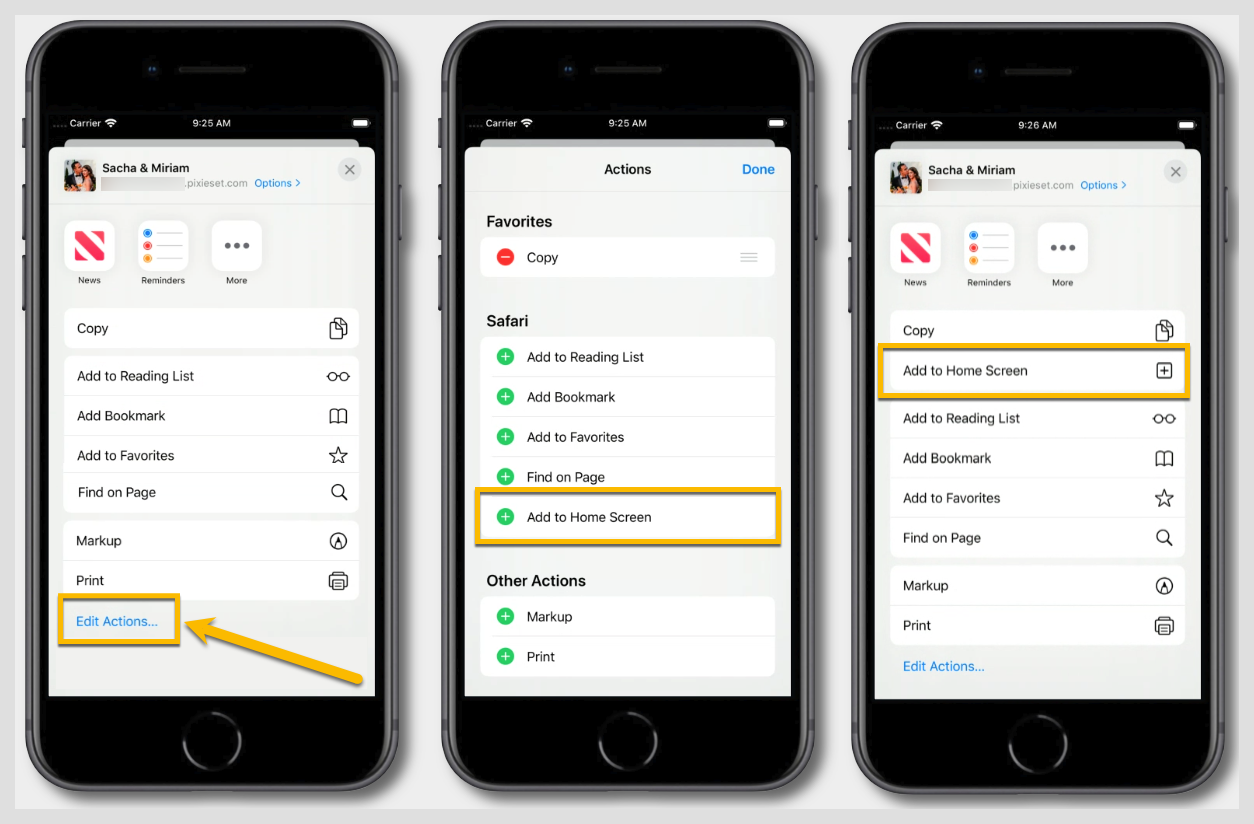
How to Install the App
Here are the steps to install the app on your device.
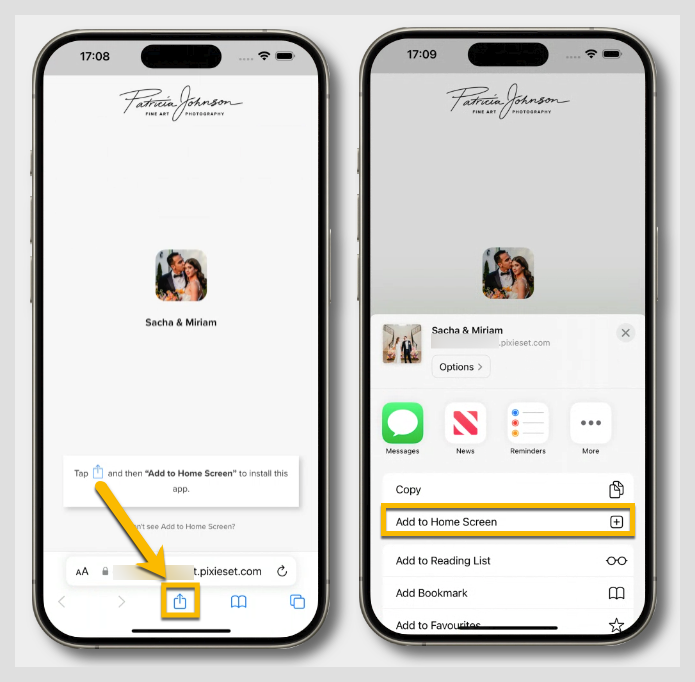
Installing on iOS Devices
To install the app on an iPhone:
- Click on the Install App button in the email, or open the link shared with you.
- Tap the Share icon and select Add to Home Screen to add it to your mobile device's Home Screen.
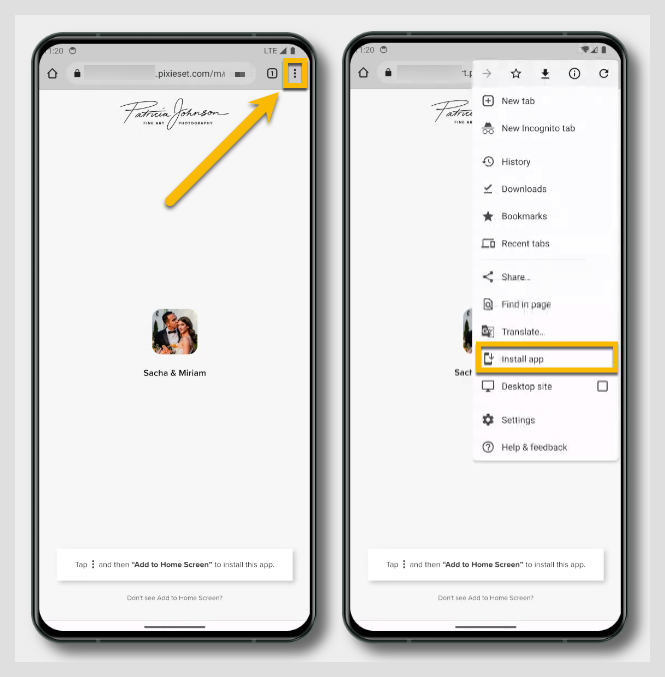
Installing on Android Devices
To install the app on an Android mobile device:
- Click on the Install App button in the email, or open the link shared with you.
- Tap the Menu icon in the top right, and select Install App to add it to your mobile device's Home Screen.
Troubleshooting
I can’t download my Mobile Gallery App
If the link to install the Mobile Gallery App doesn’t show an "Add to Home Screen" or "Install App" option, you might be viewing the installation page from an unsupported browser.
Ensure that you are viewing the Mobile Gallery App from your browser app rather than your mail app’s built-in web browser (which does not support the “Add to Home Screen” option).